Onimusha PC Crashes: Fixes and Performance Guide
Onimusha: Way of the Sword is crashing on a lot of PCs. Capcom's official troubleshooting list, what players report, and what still has no fix.
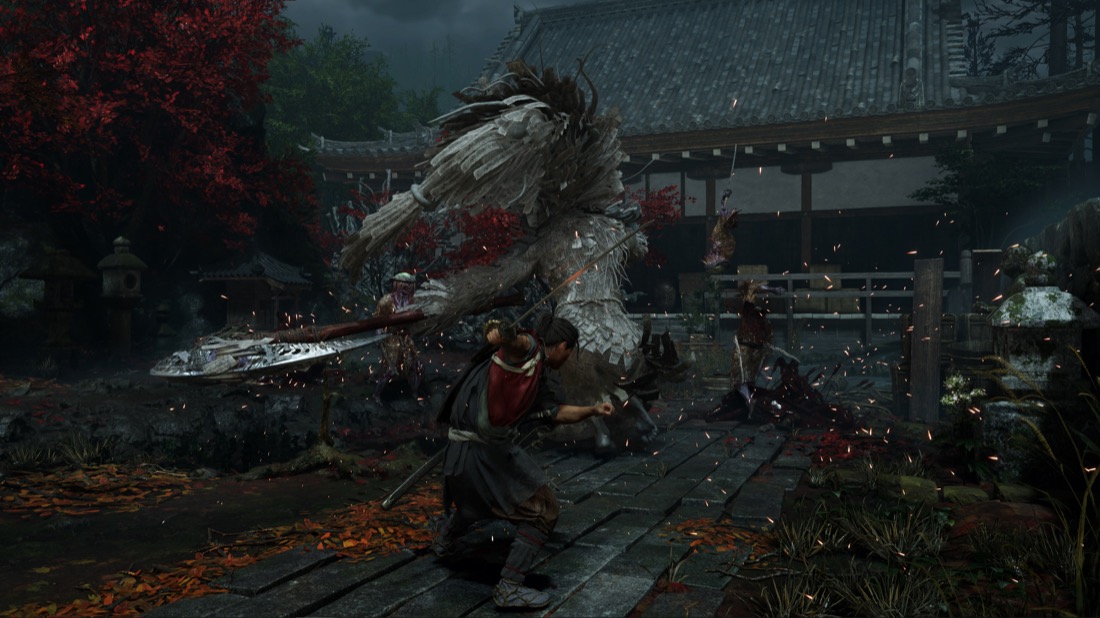
Image: Capcom
If Onimusha: Way of the Sword is crashing on your PC, work through Capcom’s own 17-step troubleshooting list first — it is pinned on the game’s Steam discussion hub and it is the only official guidance Capcom has published. The honest second half of that answer: there is no PC patch and no Capcom ETA as of September 9, 2026, five days after launch, and no universal fix has been confirmed in that thread — some players are still crashing after everything they have tried.
What Capcom has officially acknowledged
The Capcom Customer Service Center runs a pinned “Official Onimusha: Way of the Sword Troubleshooting & Issue Reporting Thread” on the game’s Steam hub, posted around launch and carrying roughly 100 replies. The issue classes it addresses tell you what Capcom knows is happening:
- Crashes during gameplay
- Crashes on exit
- Frame-rate instability
- Shader optimization delays
- Black screen / startup failure
- Cutscene video playback problems
Crash-on-exit being named as its own class matters — it is one of the specific complaints coming from players on hardware well above the recommended spec.
What the post does not contain is any statement about a forthcoming patch. Checked against the game’s Steam news feed on September 9, the most recent Capcom announcements are the one-million-sales post, the launch post and the release notice. No update or hotfix post exists.
Capcom’s troubleshooting steps, ordered by what is most likely to help
| Step | What it targets |
|---|---|
| Add the game and Steam folders to antivirus/firewall exclusions | Security-software false positives, which Capcom’s own guidance says frequently cause launch failures and frame-rate drops |
| Update GPU drivers to NVIDIA 596.49+ or AMD 26.5.1+ | Driver-level crashes |
Delete shader.cache and shader.cache2 from the install folder | Shader compilation problems and hitching |
Run Steam.exe and the game executable as administrator | Permission-related launch failures |
| Install the Microsoft Media Feature Pack | Cutscene playback failures specifically |
| Reset driver settings; disable the integrated GPU on dual-GPU laptops | Laptops rendering on the wrong adapter |
| Verify game files through Steam | Corrupted install |
| Disable compatibility mode on both executables | Startup failures |
| Set Windows power plan to High performance | Frame-rate instability |
| Adjust screen mode, resolution, VSync and HDR; drop the preset to Low | Display-mode and load-related crashes |
| Close background apps; check cooling; install the latest DirectX End-User Runtime | General stability |
The antivirus exclusions Capcom names explicitly are C:\Program Files (x86)\Steam\steamapps\common\OnimushaWotS, C:\Program Files (x86)\Steam, and C:\Users\%USERNAME%\AppData\Local\Steam.
Capcom asks players to verify they meet the minimum specs first. Every published requirements tier assumes upscaling and requires an SSD — no native-resolution figure is published anywhere, so a machine that “meets recommended” is meeting it with DLSS or FSR on.
What players report — and what those reports are worth
Everything below is player-reported on Steam Community forums — individuals describing their own machines. It is not confirmed behavior of the game, and Capcom has not endorsed any of it.
The scale is real, though. “Constant crashing” is the largest technical thread on the Steam hub, at 119 comments when read on September 9, and a Steam discussion search for “crash” returns 429 entries across 43 pages. A second thread is titled “Absolutely CONSTANT Crashes on Systems Way Above Required Specs” (15 comments).
The specific patterns reporters describe in the main thread:
- Crashes on launch with a black screen before the crash reporter even appears (reported September 5)
- Crashes that only start after roughly 4.5 hours of play, then recur every 10 to 60 seconds
- Crashes clustering near water — specifically a bridge in the Kyoto map — and near the fourth boss
Fixes those same reporters tried that did not work: capping FPS at 120, 90 and 60; verifying file integrity; reinstalling ReFramework; and disabling DLSS at both game and driver level.
There is no confirmed universal fix in that thread. Other posters in the same discussion report 7 to 12 hours of play with no crashes at all, which points toward a hardware or driver interaction rather than a defect every player will encounter.
Be skeptical of the “known bad hardware” lists circulating. In the same thread one poster blames AMD systems, another blames Intel CPUs, and a user on an RTX 5080 with a 7800X3D on driver 595.79 reports no crashes at all. Single anecdotes that cancel each other out — do not buy or return hardware over them.
The conflict worth understanding
Published PC performance analyses characterize this port as running well, with no shader-compilation stutter. The Steam hub carries hundreds of crash reports. Both can be true at once — a benchmark on one clean configuration says nothing about a driver interaction on another machine — and any guide that picks a side and pretends the other does not exist is misleading you.
Traversal stutter and the Eastern Kyoto hub
The one location that shows up in measured testing is Eastern Kyoto. Steam Deck HQ found the hub causes CPU spikes that produce stuttering and higher battery drain there specifically — power draw rises from 13–14 W in general areas to 13–20 W in the hub. That is Deck data, but it corroborates the traversal-stutter complaints desktop players describe, and localizes them to one area rather than the whole game.
Steam Deck: Playable at 30 FPS, and don’t tune it
Steam Deck HQ rates the game Playable, and it is Gold on ProtonDB. Their recommended configuration is deliberately plain: cap FPS at 30, default graphics settings, linear scaling filter, no forced Proton version, no TDP limit, no GPU clock changes. The reviewer explicitly advises against tuning — custom adjustments “yield minimal improvement and reduce stability.” Measured on that setup: a mostly solid 30 FPS, 65–75 °C, and 2.5 to 3 hours of battery. A locked 60 FPS on Deck is not supported by any evidence we could verify, so treat any “Steam Deck 60fps settings” guide for this game with suspicion.
The fix you should hold off on
A config.ini edit changing PreCompileShaders from 0 to 1, under AppData\Local\CAPCOM\OnimushaWOTS, circulates widely as a shader-stutter fix. We could not verify that this file, key or path exists — no source we checked documents it. Capcom’s official shader remedy is different: delete shader.cache and shader.cache2 from the install folder. Treat PreCompileShaders as an unverified community suggestion and try Capcom’s step first.
How to actually report your crash to Capcom
If none of the above works, this is the most useful thing you can do. The game writes crash reports to:
C:\Program Files (x86)\Steam\steamapps\common\OnimushaWotS\CrashReport
They are timestamped .zip files. Attach the relevant one when you post in Capcom’s official troubleshooting thread — a report with a crash dump is worth far more than one without.
One crash consequence to protect yourself against
A crash in the wrong place can cost you your save. Two Steam players reported on September 8 that during Okuni’s Kabuki Dance, which takes Musashi by boat to an island, crashing or dying there before activating the island’s Spirit Mirror respawns you on the main island with no boat and no way back. One was roughly 24 hours into that save, with only a two-day-old manual save to fall back on; another player replying in the same thread described the same situation with no manual save at all. These are player reports, not a Capcom-confirmed bug, and no workaround has been posted. The prevention costs nothing: manual save before boarding the boat, and activate the Spirit Mirror the moment you land.
Denuvo and the benchmark tool
The Steam store page carries a third-party DRM notice, verbatim: “Incorporates 3rd-party DRM: Denuvo Anti-tamper — 5 different PC within a day machine activation limit”, plus a required third-party EULA. Nothing in Capcom’s troubleshooting list attributes any crash to Denuvo, and no source we checked connects the two.
Before buying, you can test your machine with Capcom’s free Onimusha: Way of the Sword Benchmark, released July 14, 2026 on Steam and the Epic Games Store. It needs 18 GB of free storage, reports average FPS and 1% Low FPS, and scores your system on Capcom’s own bands: Excellent 25000+, Good 20000–24999, Playable 11000–19999, setting changes recommended 7000–10999, setting changes required 5000–6999, insufficient 0–4999.
Two caveats. Capcom states plainly that “There is no guarantee of performance parity between the Onimusha: Way of the Sword Benchmark and the base game, Onimusha: Way of the Sword.” — a good score does not promise a stable game. And Capcom’s instructions and the live Steam page disagree on how you get it: Capcom’s benchmark page says to click “Download” or “Get” on the Steam product page, while the Steam page renders it as a request-access block. That conflict is unresolved — check the live store page rather than assuming a one-click download.
Perspective on the numbers
The crash threads are loud but they are not the whole picture. Steam’s all-time review summary on September 9 reads Very Positive — 9,957 positive against 1,279 negative from 11,236 reviews (88.6%), with recent English reviews higher still at 93.6%. Most buyers are happy with it. If you are not one of them, Capcom’s list is your best shot, and the crash report folder is how you make any future patch more likely to cover your case.
Frequently asked questions
Why does Onimusha: Way of the Sword keep crashing on PC?
There is no single confirmed cause. Capcom's own troubleshooting thread lists crashes during gameplay and on exit as known issue classes, and its recommended steps point at antivirus interference, outdated GPU drivers, corrupted shader caches and dual-GPU laptops. Other posters in the same threads report 7 to 12 hours of play with no crashes at all, which points to a hardware or driver interaction rather than a defect everyone hits.
Has Capcom patched the Onimusha PC crashes?
No. As of September 9, 2026 — five days after launch — no post-launch patch notes appear in the game's Steam news feed, and Capcom's troubleshooting post contains no statement about a forthcoming patch or an ETA.
Should I edit PreCompileShaders in config.ini to fix Onimusha crashes?
That edit circulates in community posts but is not verified and is not what Capcom recommends. Capcom's official step is to delete shader.cache and shader.cache2 from the game's install folder, which is a different remedy in a different location. Try Capcom's step first.
Does Onimusha: Way of the Sword run on Steam Deck?
Yes. Steam Deck HQ rates it Playable and it is Gold on ProtonDB, holding a mostly solid 30 FPS on default settings with a 30 FPS cap. The Eastern Kyoto hub is where it stutters.
Does Onimusha: Way of the Sword have Denuvo?
Yes. The Steam store page carries a third-party DRM notice for Denuvo Anti-tamper with a five-machine-per-day activation limit, plus a required third-party EULA.